Email preference center: Let subscribers control their experience

 Amer, marketing team.
Chocolate or vanilla? Shaken or stirred? Medium or rare? Customers want choice. And when they get it, their experience improves.
That’s why we rebuilt our email preference center: To make it easier than ever for you to create flexible, branded preference pages that give subscribers more control.
In this guide, you’ll learn how to build a preference center with our new builder, which email options to offer, and the best practices you can use to boost engagement and decrease unsubscribes.
What exactly is an email preference center?
An email preference center is a page where subscribers can control the emails they receive from you.
You can let them choose how often they hear from you, select the topics they care about, opt out of advertising, or update personal details like their name and email address.
Most brands link to their preference center in the footer of marketing emails, next to the unsubscribe link. This gives subscribers who are thinking about leaving your list the option to adjust the content they receive instead.
It’s a simple change that leads to better engagement and stronger long-term relationships.
Why you should use a preference center
Letting subscribers tailor the experience they have with your brand to their needs can lead to plenty of big benefits:
Fewer unsubscribes: People can choose to receive more relevant content instead of leaving your list
Improved email metrics: Targeted content results in open and click-through rates (CTR) that are 36.69% and 267.21% higher than non-targeted campaigns. A preference center helps you send more relevant content
Deeper personalization: Collect useful data like name, industry, or location to send more personalized content
More opportunities for automation: Trigger automated emails based on submitted preferences
Ultimately, by letting subscribers choose what types of content to receive, they get an improved brand experience that’s more tailored to their needs.
How to set up your preference center in MailerLite
Our new builder has everything you need to create an on-brand preference center that improves the subscriber experience.
You get:
An intuitive drag-and-drop builder
Multi-language support
More design and styling options
Global styles for a consistent brand experience
Edit all preference center-related assets from a single builder
Smarter grouping that removes the need for complex manual rules
This feature is available to all MailerLite Power and Comfort plan customers. Here’s how to get started today.
Access the preference center dashboard
Start by navigating to your Account settings and clicking Preference center to open the preference center dashboard.

If you already have a preference center, we’ll automatically migrate it to the new builder the first time you access it. Just follow the guided setup to map your existing rules.
Edit your preference center form

From the preference center dashboard, you can click Edit content to begin editing your page.
The main part of your preference center is the form block. This is what you use to let subscribers choose their preferences.
By default, we’ve populated it with Frequency and Interest group settings, but you can easily add or remove questions.
When adding a question, you can choose from:
Single line text
Text area
Drop-down menu
Checkboxes
You can choose to add people to a group based on their answer or update a custom field with their response.
You can also edit the question settings by allowing people to select multiple options or making a particular question required.
Add more content and customize styles
If you need to add more content to your page, simply drag and drop one of the 7 blocks from the sidebar into the content. Choose from videos, images, text, headings, and more.
Once the block is in place, edit the colors, fonts and spacing. Or, head to the Brand styles menu in the left sidebar to automatically apply one of your existing brand styles to the page.
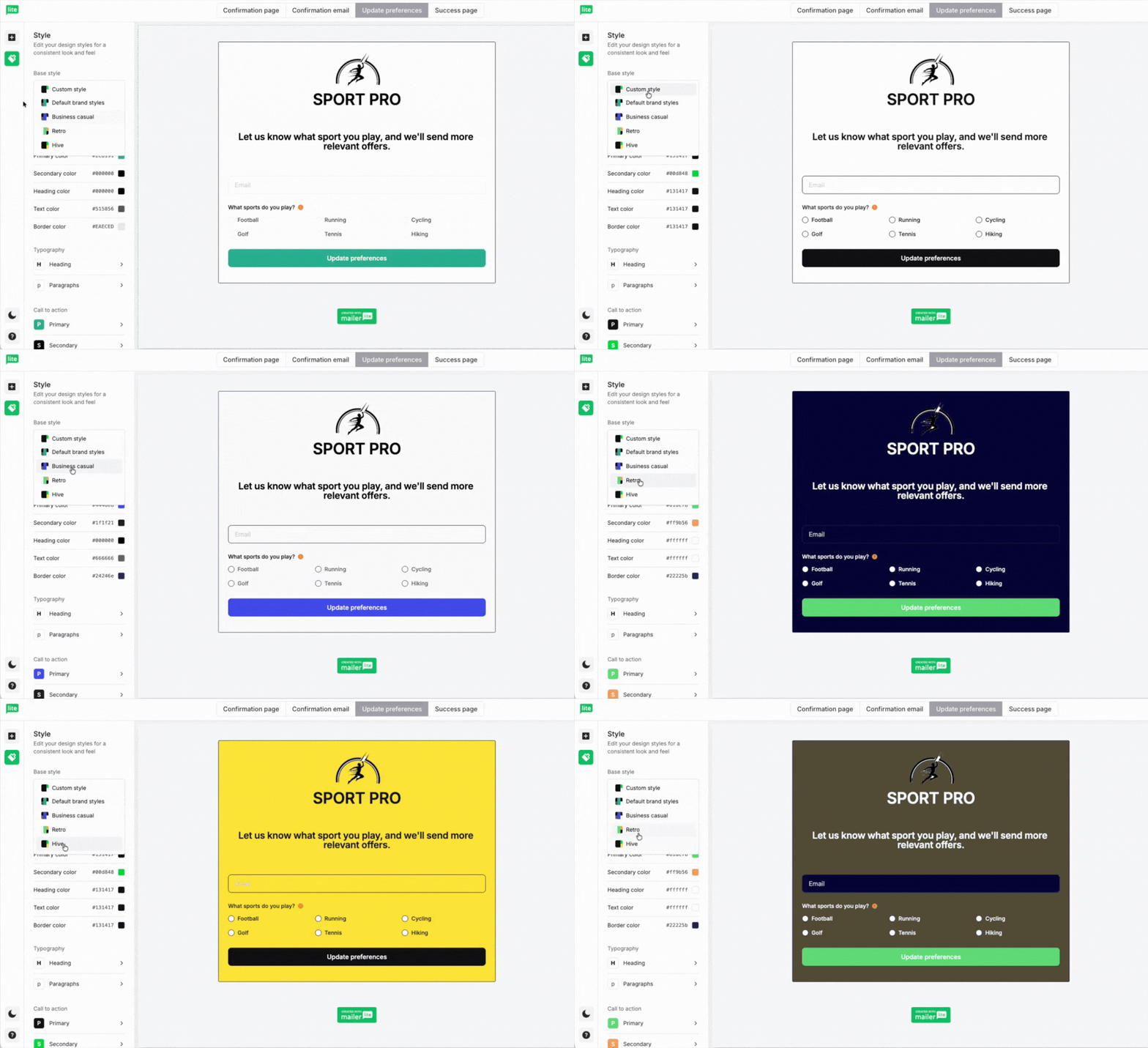
Edit all preference center assets from a single builder
Use the tabs at the top of the preference center editor to edit your confirmation page, confirmation email, preference form, and success page, without having to switch through different editors.

Your style options will be reflected in each asset, ensuring subscribers get a consistent experience when interacting with your brand.
Offer versions for multiple languages
You can now easily translate your preference center into multiple languages. Just click the language drop-down from the dashboard and choose the language you want to add.

This will create a duplicate version of your original preference center, which you can add content to in your chosen language. Subscribers can choose their preferred language when visiting your preference center.
Add the preference center to your emails
Once set up, you can add your preference center to your email by clicking on your footer, toggling the Include link to preferences center option to on, and then customizing the text.

When subscribers click the update preferences button, they’ll be directed to their preference center, where they can adjust their settings. If they make any changes, you’ll automatically send a confirmation email.
See a complete walkthrough of how to set up a preference center in this knowledge base article.
Which preferences should you offer
A good rule of thumb is to start with the types of emails you already send and let subscribers choose which ones to receive.
For example, if you send a daily newsletter and a weekly roundup, let people choose between those 2 frequencies. Don’t also add options for biweekly and monthly unless you have a system in place to ensure you can send at this frequency.
Likewise, if your brand sends a newsletter for product updates and one for marketing tips, let people choose to receive updates, tips or both. Don’t add other options unless you're willing to create more newsletters.
Here are some common preference options.
Email frequency
Let subscribers choose how often they hear from you. Add people to a group based on their selection and then include or exclude them when you send campaigns.
Language
If you send emails in multiple languages, let people opt in to the one they prefer to read.
Topics
Let people choose the topics they are most interested in, and then tailor your sending based on their preferences.
Content types
Let people choose the types of content they want to receive from you. They might not want to receive your education content, but are still keen to hear about sales and discounts.
Advertisements
Make it clear that people can opt in or out of receiving email ads without affecting the other emails they receive.
Locations
If your content or offers change depending on the subscriber's location, use location-based preferences to help ensure relevance.
Use your preference center to collect subscriber data
Preference centers aren’t just about email frequency and topics. You can also collect useful profile data, such as:
Name
Email address
Location
Industry
Company size
Interests
This information allows you to deliver more personalized, relevant email experiences without overwhelming your subscribers.
Email preference center examples
Here are 3 preference center examples created with our builder. Each one shows a different way to let subscribers manage their experience with your brand.
1. Email frequency example
A media brand could ask subscribers to choose their preferred email frequency: either a daily, weekly or monthly digest.

2. Content preferences example
Content preferences give you the exact data needed to send targeted email newsletters. In this email preference center example, a sports store invites subscribers to choose which sports they play so it can send more relevant offers.

3. Location preferences example
Let people choose to only receive information relevant to their location. In the example below, the band asks subscribers where they are based so they can send tour updates.

Email preference center best practices
Now you’ve got your email preference center set up, here are some best practices you can follow to make the most of it.
Make it easy to find
Link to your preference center from every email in the footer near the unsubscribe link. This positioning lets people know they have an alternative to unsubscribing.
Confirm the changes
Once someone has requested changes, send a confirmation email so they know you have received their request. This happens automatically if you built your preference center with MailerLite.
Keep it on brand
Create a consistent brand experience by adding your brand colors and typography to the preference center and related emails. You can easily adjust your brand styles with our new preference center builder.
Keep it Lite
Your preference center shouldn’t feel like a questionnaire. Only ask questions that are relevant to your business and email marketing strategy.
Have a system to act on the requests
Use the groups and updated fields to include or exclude people from each campaign you send based on their preferences. If you don’t act on the requests, people may end up just hitting that unsubscribe button or ignoring your emails.
Get started today
Your preference center helps you offer genuine, personalized messaging that your subscribers truly want to receive.
Start by following the steps above to decide what preferences to offer, and then build out your branded preference center page with MailerLite’s drag-and-drop tools.
Create your preference center today
Upgrade to a MailerLite Power or Comfort plan to create your preference center to boost engagement and get happier customers. If you’re new to MailerLite, you can try out all our paid features with a free trial.

